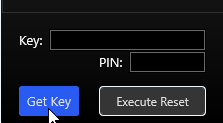
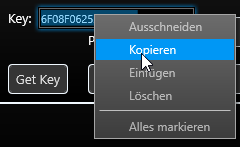
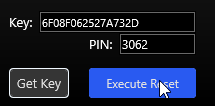
Dieser Fehler kann bei den Geräten easyTRX2/S sowie den easyTRX3 Geräten auftreten.
Das ist aber kein Grund zur Panik, das können Sie selbst lösen.
Der Fehler selbst kann auftreten wenn:
die Betriebsspannung während des Winterlagers ganz langsam sinkt und ab einem gewissen Bereich kommt, der dann zu Schreibfehlern führt (nur ältere easyTRX2 Geräte)
Die Verbindung während eines laufenden Updatevorgangs unterbrochen wurde (z.B. durch schlechte USB-Kabel, Wackelkontakt,…, alle Geräte)
Sie den Update-Vorgang starten wollten, während noch keine Firmware auswählt war (easyTRX3, ältere Version vom Programming-Tool < 1.8)
Fehler-Merkmal:
Im Normal-Fall booten die Geräte beim Anschluss von 12V regulär hoch, hier blinken alle LEDs abwechseln. Ist dies aber nicht der Fall und die Warning/Error LED ist sofort aktiv, könnte eine fehlende Firmware die Ursache sein.
Außerdem ist es Ihnen im Fehlerfall nicht möglich, sich via USB/WiFi mit dem Gerät zu verbinden.
Lösung:
Je nachdem welches Gerät Sie haben, gibt es verschiedene Lösungen:
Please check if the easyTRX3 WiFi network “easyTRX3_xxxxx” is visible with your PC/Laptop/mobilephone.
Also check if not regular reboot of the easyTRX3 happens.
You can see it when all LEDs light up regulary.
If you see regular reboot, please check your power wires.
Note that the easyTRX3-Manager app does not keep alive in background.
It is just used for programming and diagnose of the easyTRX3.
If you close app, press Home-button or lock your phone, the app disconnects from easyTRX3.
But that does not mean that you don´t get AIS-/GPS data.
The app is not required for this.
If you use an AIS app please get sure that it is able to get AIS data by TCP/IP.
Use IP 192.168.16.254 and Port 8080 within that app.
With some MAC OS versions starting the easyTRX3 programming tool can cause the following error message: “App cannot be opened because it is from an unidentified developer”
This Error comes from a Mac internal “gatekeeper”, which is supposed to prevent malware from getting onto the PC via unknown apps.
Since this tool is the first we developed for Mac, we are not yet certified here.
We assure you that our software is not infected with malware!
Please connect the USB cable to your PC or Laptop directly to a free USB slot.
Using an external USB-Hub, we recommend to use one with an own external power supply.
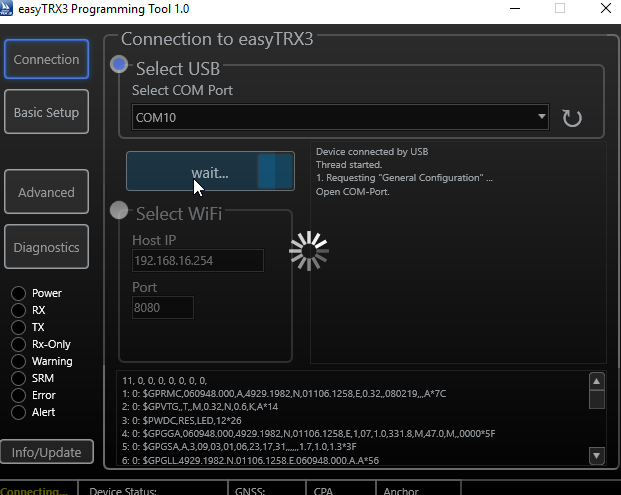
After connected well, you should see an COM-Port within the Programming-Tool.
Try the highest number first. If its not the right, just select another and press “Connect”.
You´ll be forwarded to the next page automatically.
If you don´t see any COM-Port please try to use another USB-Slot directly on your PC/Laptop.
if you connect the easyTRX3 only by USB, only the microcontroller is active!
That`s fine for programming your shipdata already at home.
There is an easy reason for that:
The max. current from your USB socket is approx. 500mA.
But if the easyTRX3 should transmitt, we need for 26ms a current of 2A.
Thats absolutely too much for USB.
If you are connected by USB only, following parts are inactive:
-WiFi deactivated, if available
-GPS receiver and internal antenna deactivated
-AIS transmitter and receiver deaktivated
-NMEA2000 deactivated
If you are connected by USB only you´ll see following LEDs:
–Power
–Warning
–Error
If you software does NOT support data by TCP-IP connection, you need to generate a virtual COM-Port.
Here we recommend to use the tool from www.eterlogic.com, here TCP-Data are virtually send to a COM-Port.
This new COM-Port is the source in your AIS Software for AIS data.